

Aperçu
SeaBell is your premier AI-assisted sanctuary for novel creation. Powered by a robust AI writing engine and a vibrant community of Creators, we embrace endless genres and styles. From capturing that first spark of inspiration to weaving complete chapters, SeaBell is right beside you on your entire writing journey!
This guide introduces the basics of the SeaBell novel generator, helping you bring your story to life from scratch.
I. Entry Points1. [Homepage] - Quick Creation Dialog: Type your ideas into the quick creation dialog on the homepage to jump straight into your creative workspace.
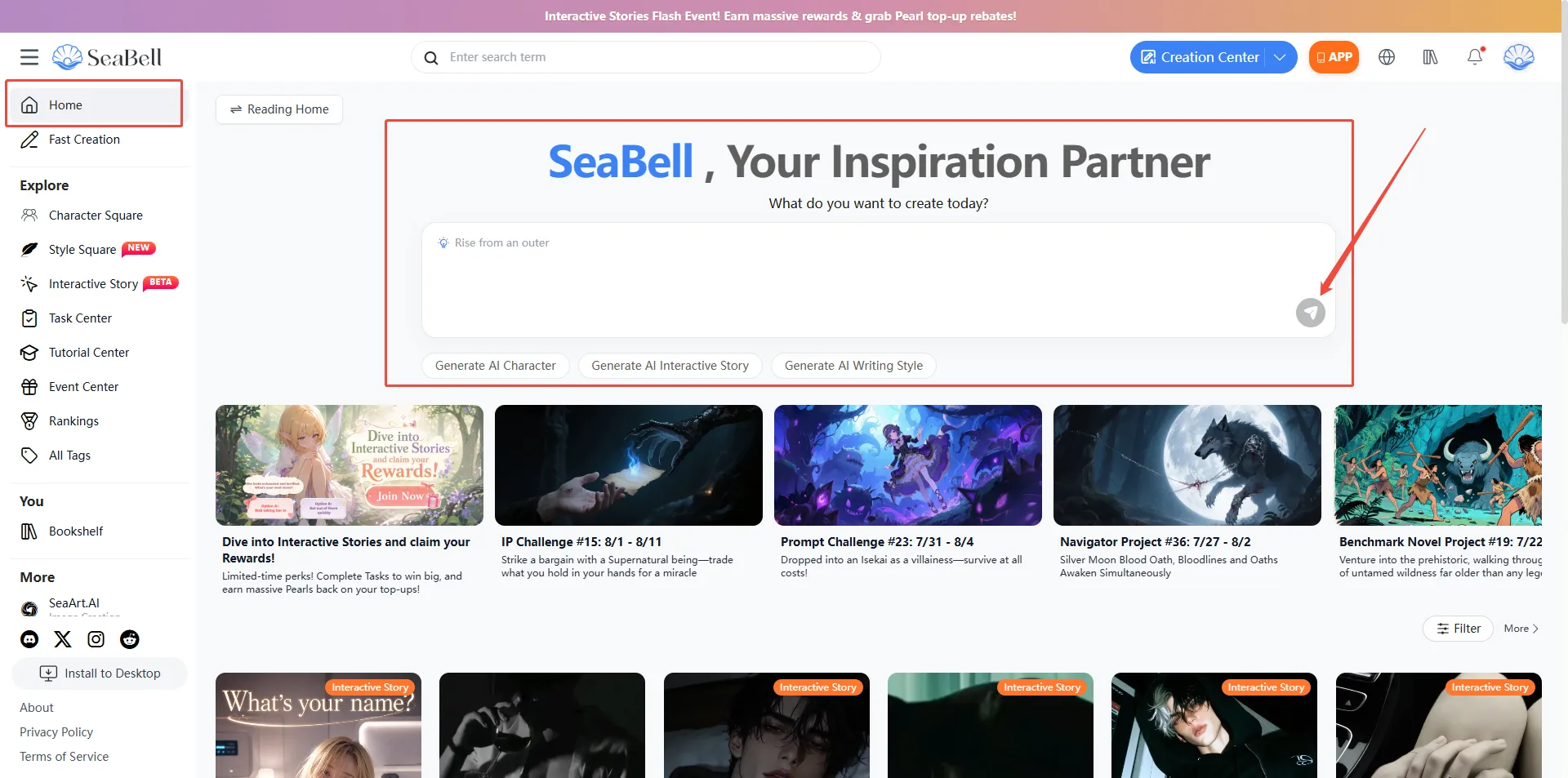
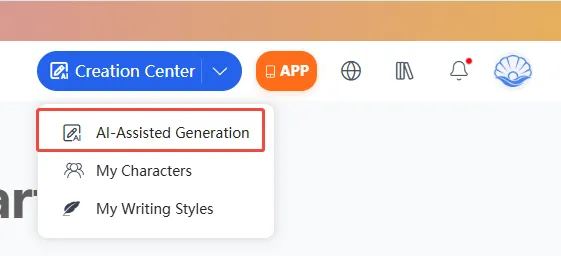
2. [Creation Center] - AI Novel Generation
● Hover over the [Creation Center] button and directly click [AI Novel Generation].
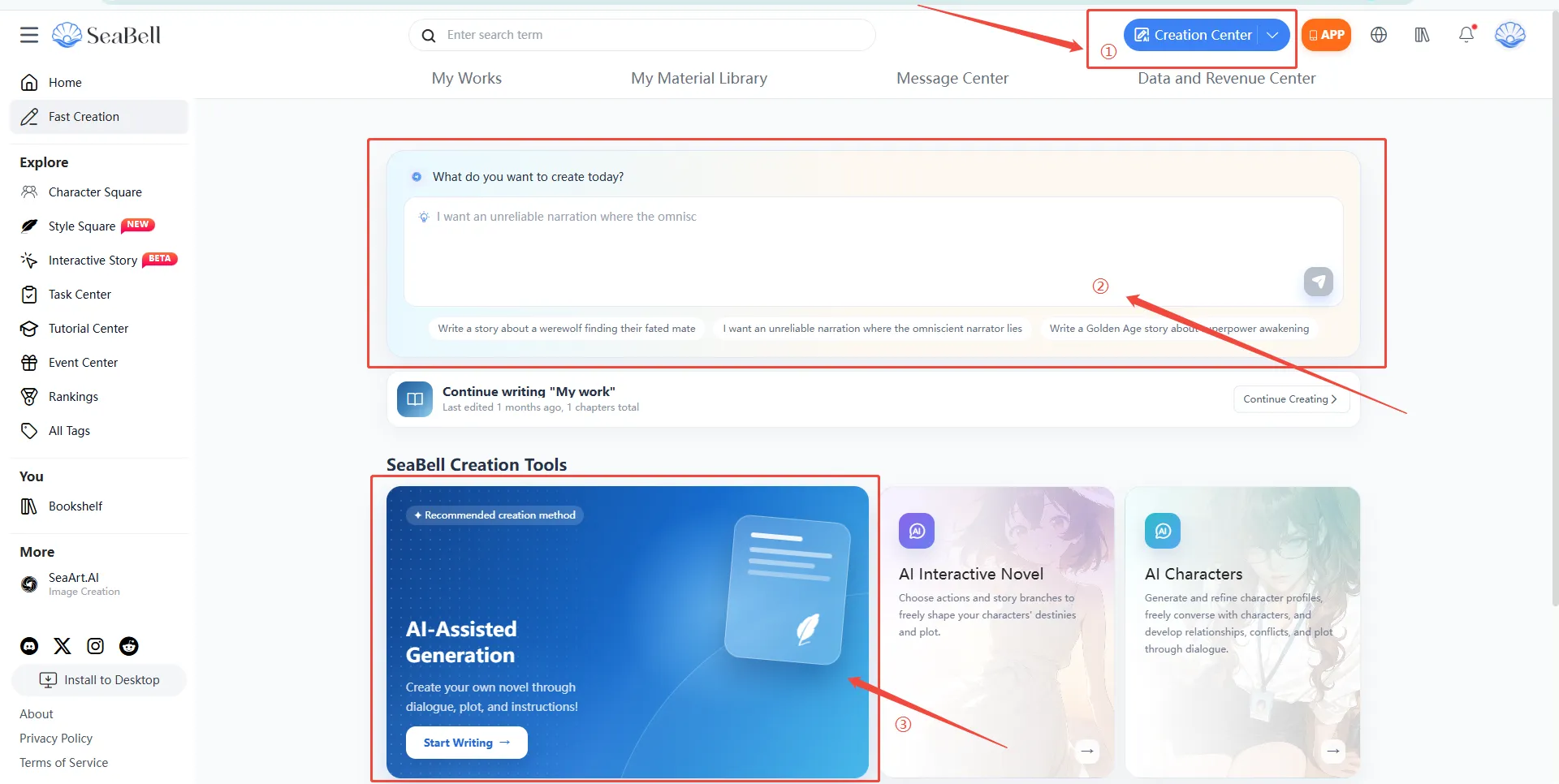
● Click the [Creation Center] button to enter the main page.
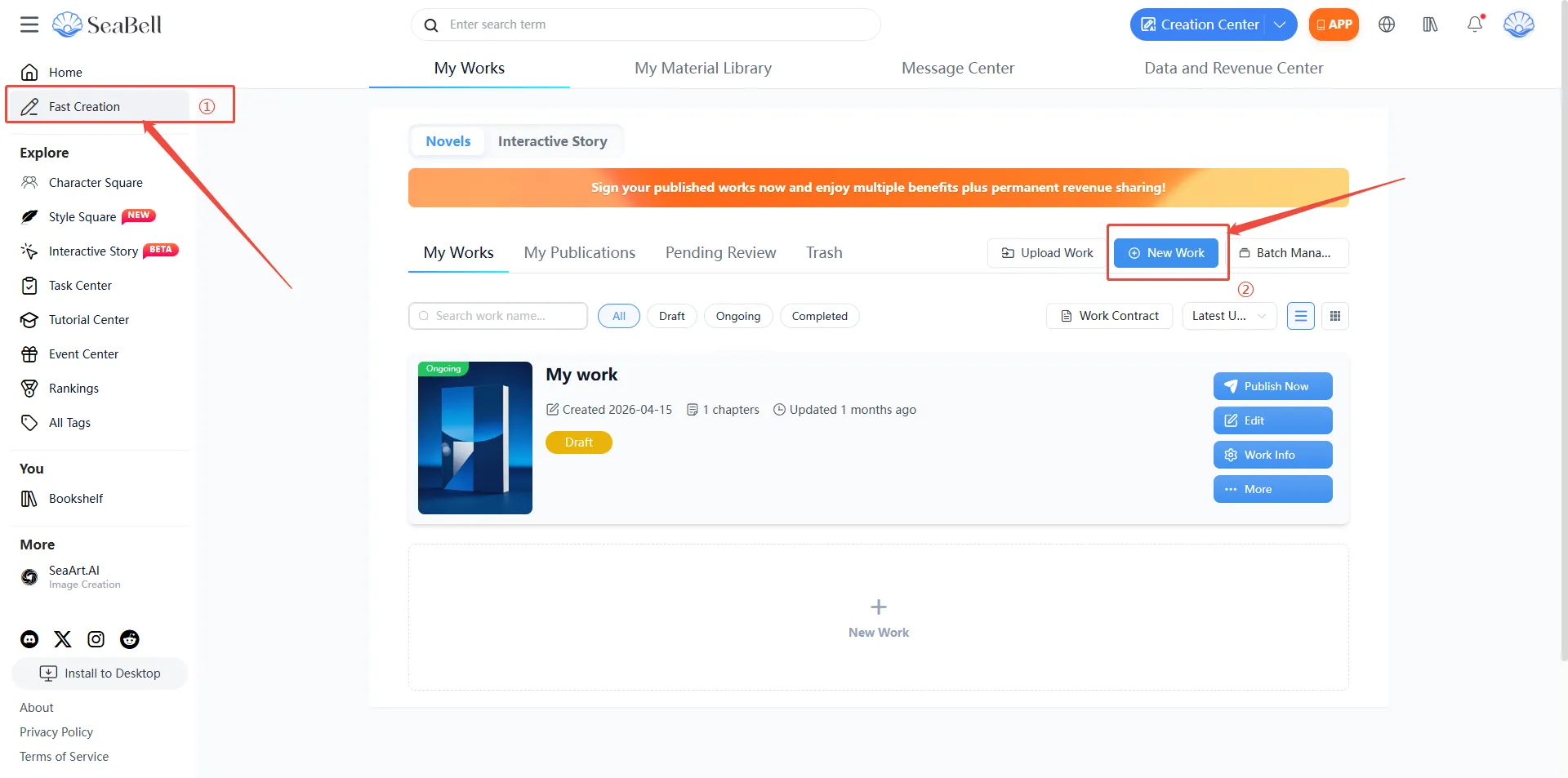
3. Click [Quick Creation] on the sidebar - Start a new Creation.
Agent Mode
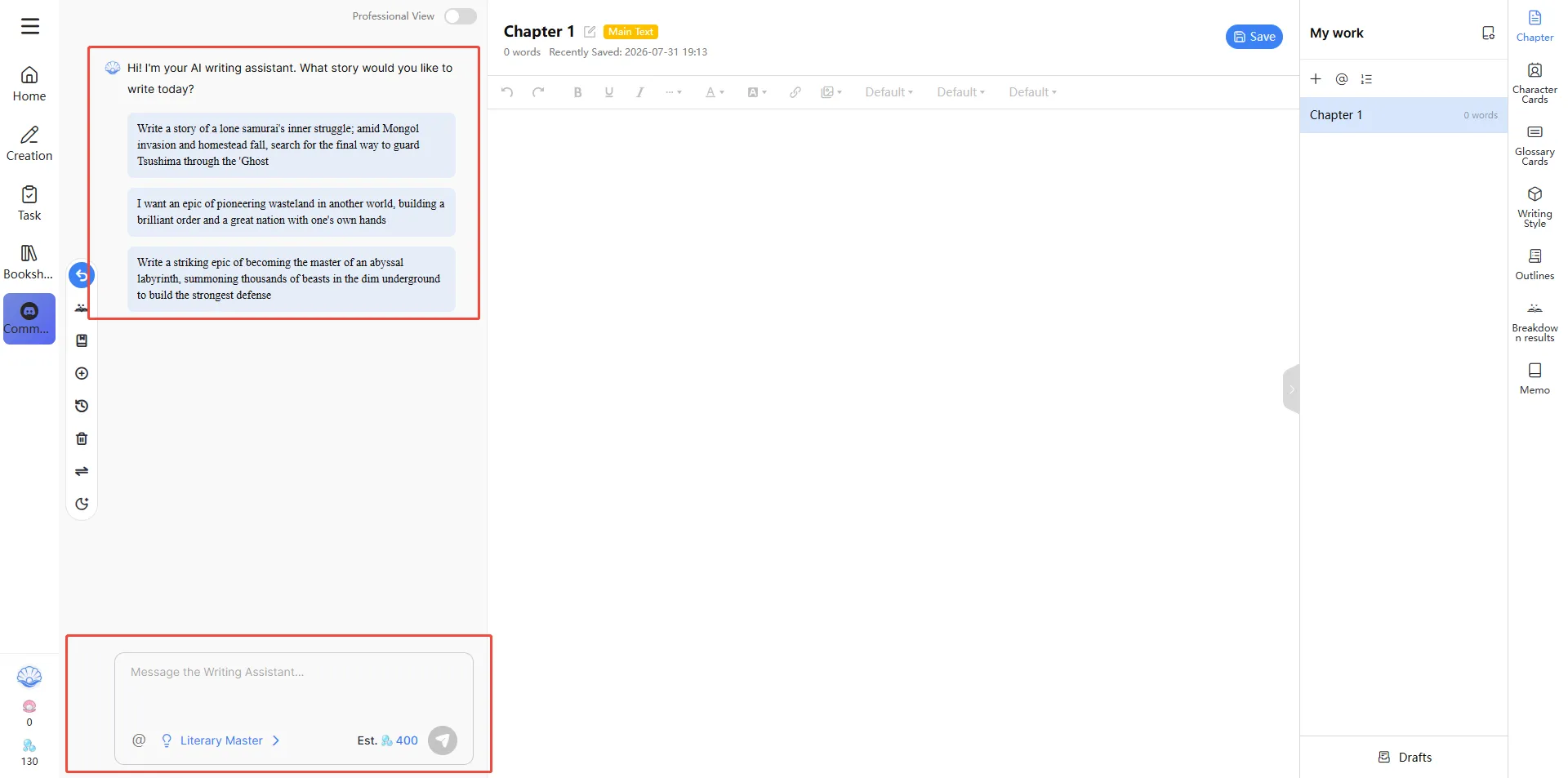
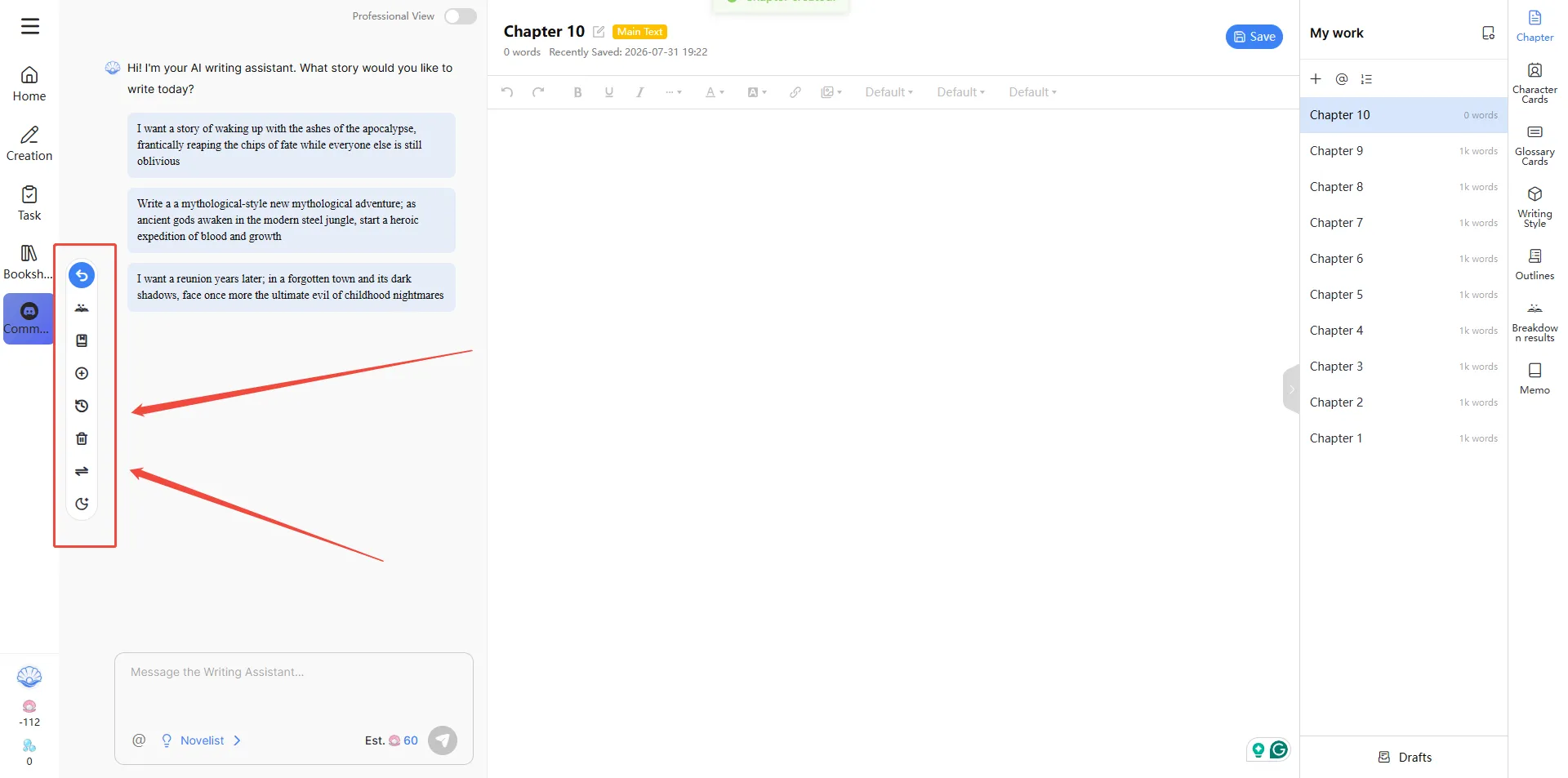
Once you start a new Creation, your workspace on the SeaBell creation page will be divided into three columns. It opens in Agent Mode by default.
✅ The left is the AI chat area, the center is the Editing Area, and the right is for managing your materials.
● AI Chat Area: In Agent Mode, you can converse with Bella, our AI Assistant. Together, you can brainstorm Outlines, Detailed Outlines, characters, and the Main Text. Once generated, you can drop them directly into the Editing Area to refine, or save them as different resource types.
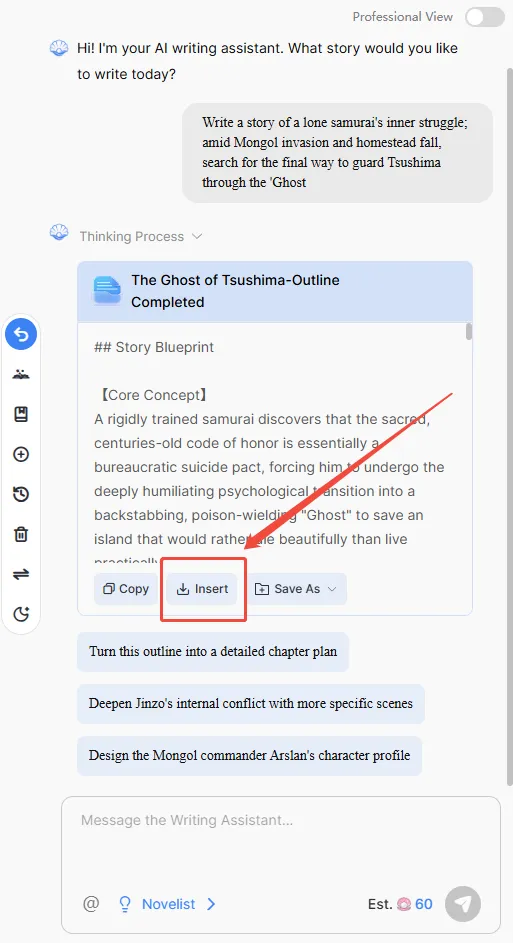
Saving generated content: When you generate Main Text via the agent, click the Insert button to save the content into the central Editing Area.
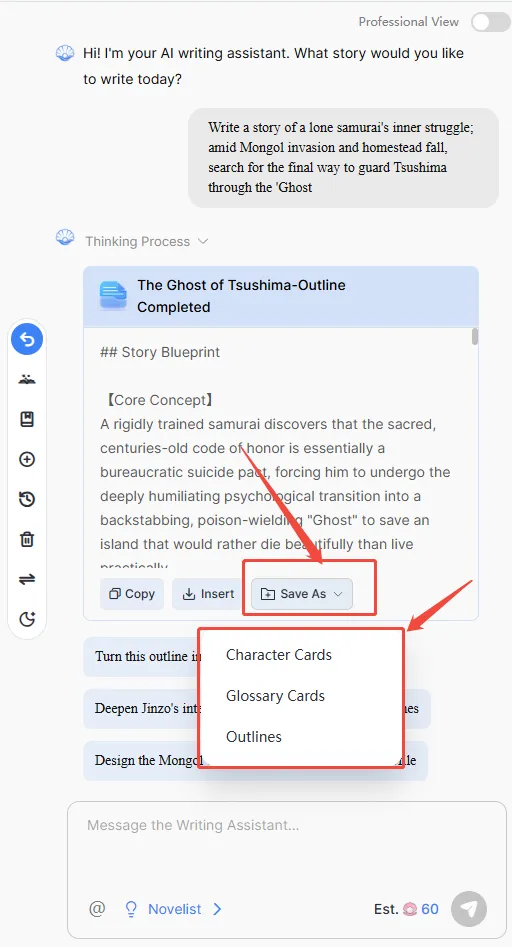
Save As: When generating items like Character Cards or Outlines, simply click Save As.
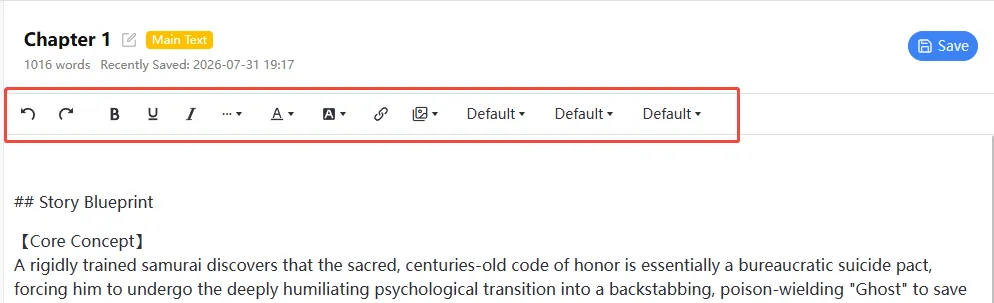
● Editing Area: This is where you polish your manuscript. You can meticulously edit the text, adjust formatting, change fonts, or even insert images.
● Material Management Area: The right panel houses all the building blocks for your story. Here, you manage chapters, Character Cards, Outlines, and your Writing Style.
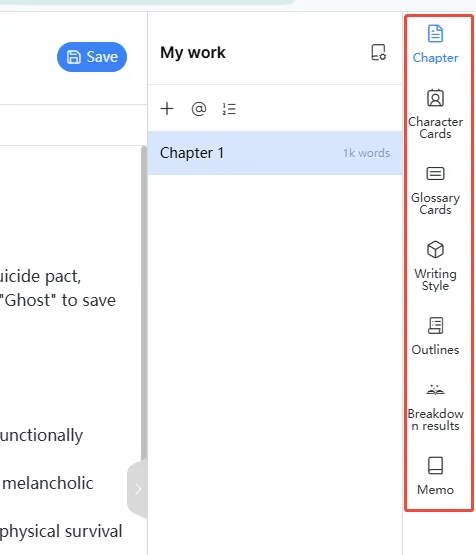
● Chapters: Manage your Main Text chapters, handle references, and Sort them.
● Character Cards: Create and edit your cast profiles.
● Glossary Cards: Keep track of your world-building lore and specific terminology.
● Writing Style: Save the literary tones you frequently use.
● Outlines: Review your overarching plot and Detailed Outlines.
● Book Breakdown: Any text analyzed by the AI Book Breakdown tool is automatically stored here.
● Memo: Jot down sudden sparks of inspiration and notes while writing.
Other Features
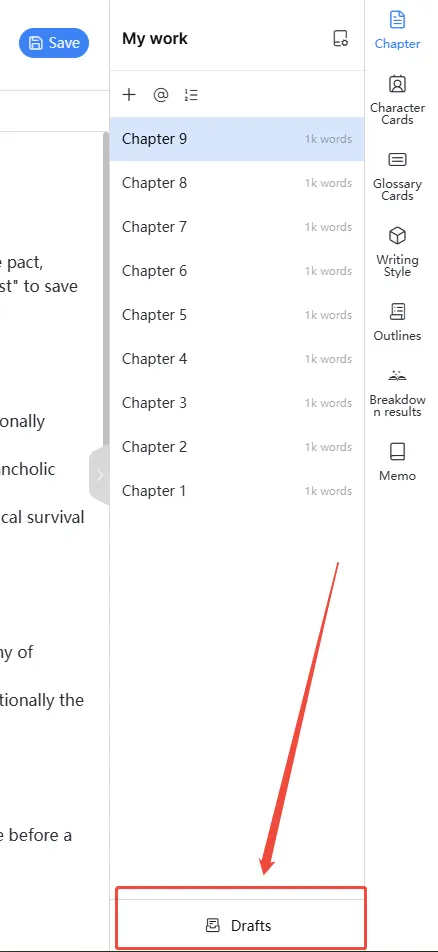
Drafts - Review all the raw ideas generated by AI.
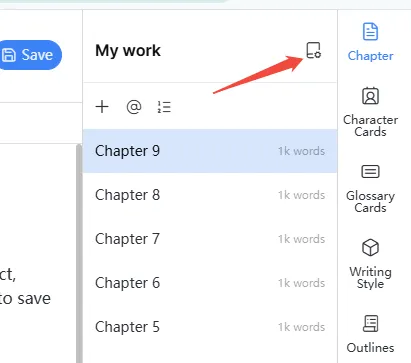
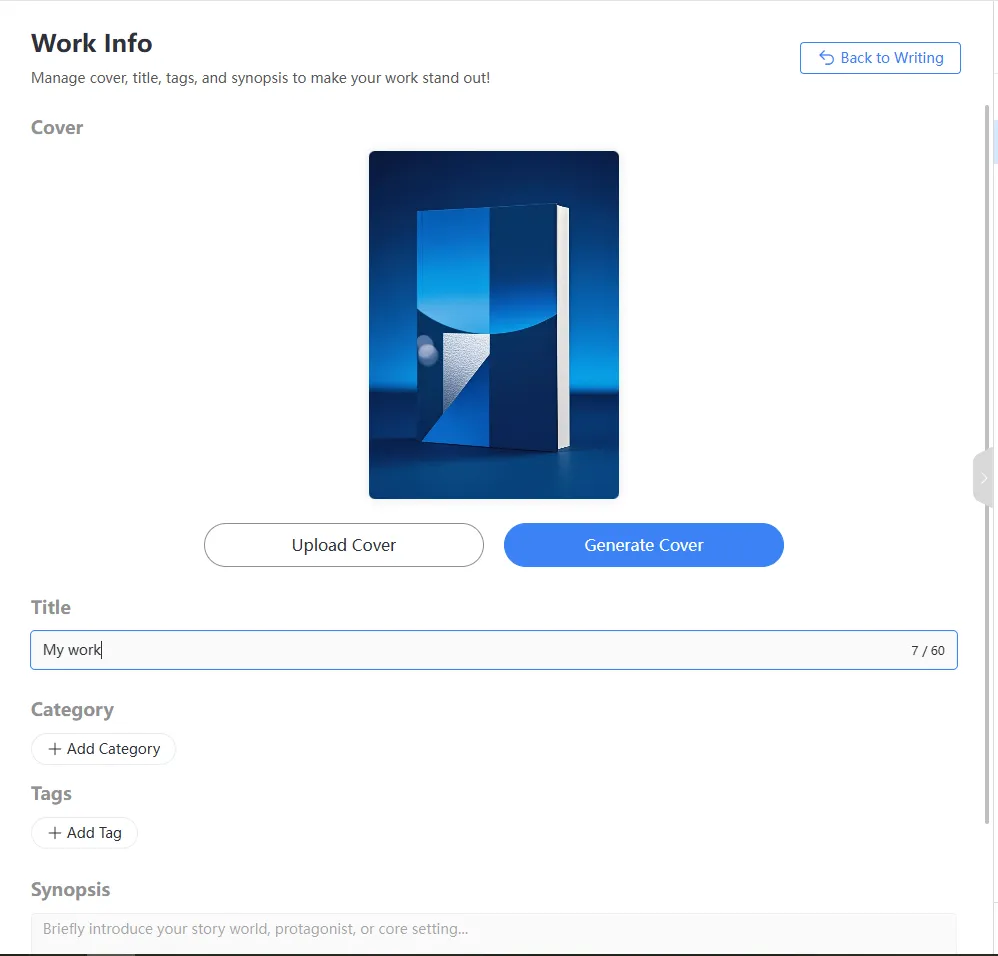
Project Info: Manage your book's Cover, title, Genre, Tags, and Synopsis.
Left Toolbar: On the far left are handy utilities. In Agent Mode, working from top to bottom, these buttons let you:
● Go back: Return to the previous page.
● Book Breakdown: Analyze the current text using the AI Book Breakdown tool.
● Manage Creation: Access your project management hub.
● New Chat: Start a fresh conversation with your AI Assistant.
● Chat History: Review and manage past discussions with the AI.
● Delete Chat: Clear the current conversation.
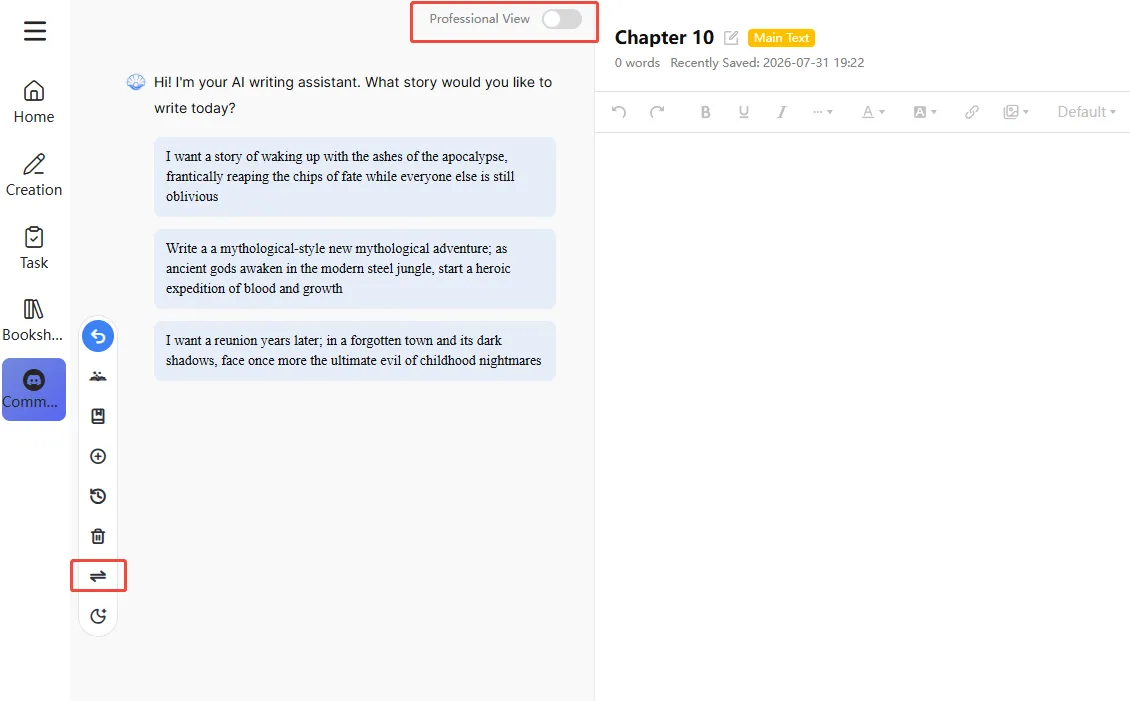
● Mode Toggle: Switch the current chat window to Professional View.
● Lights On/Off: Toggle the visual theme of the generator.
Professional View
Here, you unlock nuanced control over your generation process. Highly Recommended for seasoned Creators, this view lets you meticulously fine-tune every element of your story.
● Mode Toggle: Switch using the toggle at the top left or via the Toolbar. Once clicked, a new panel slides out on the left.
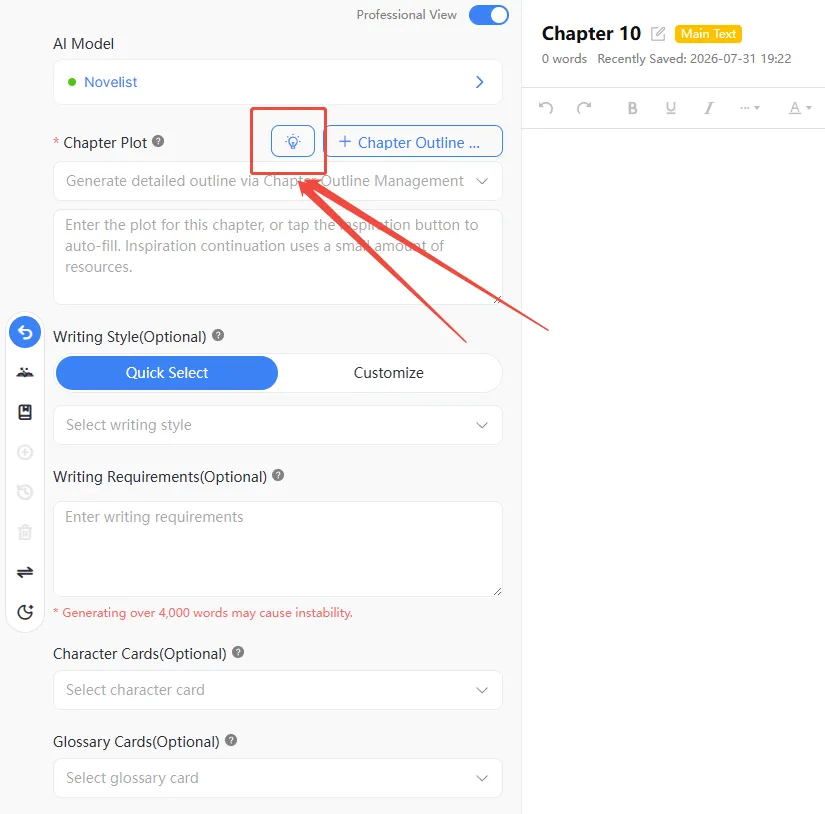
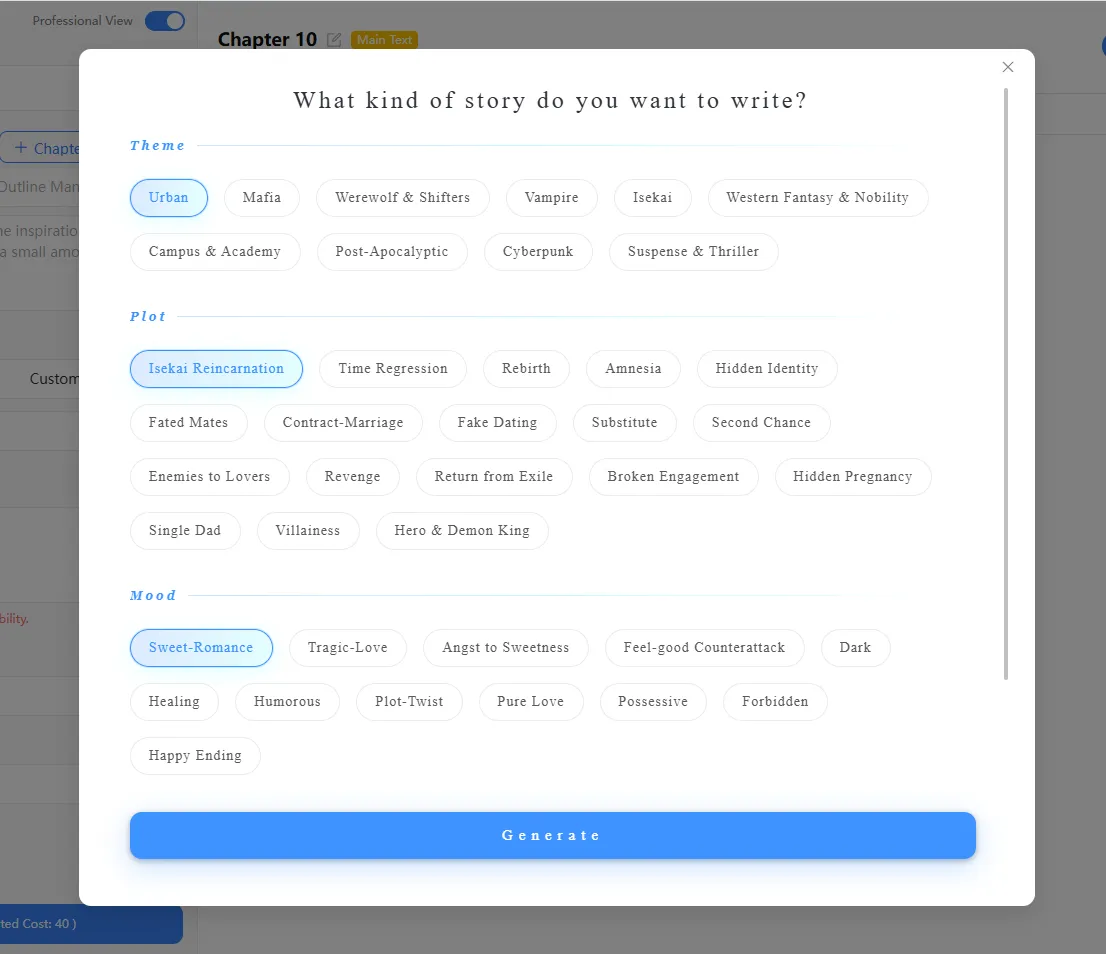
● Inspiration Generation: Staring at a blank page? The system will suggest a few Tags to help you conceptualize your tale.
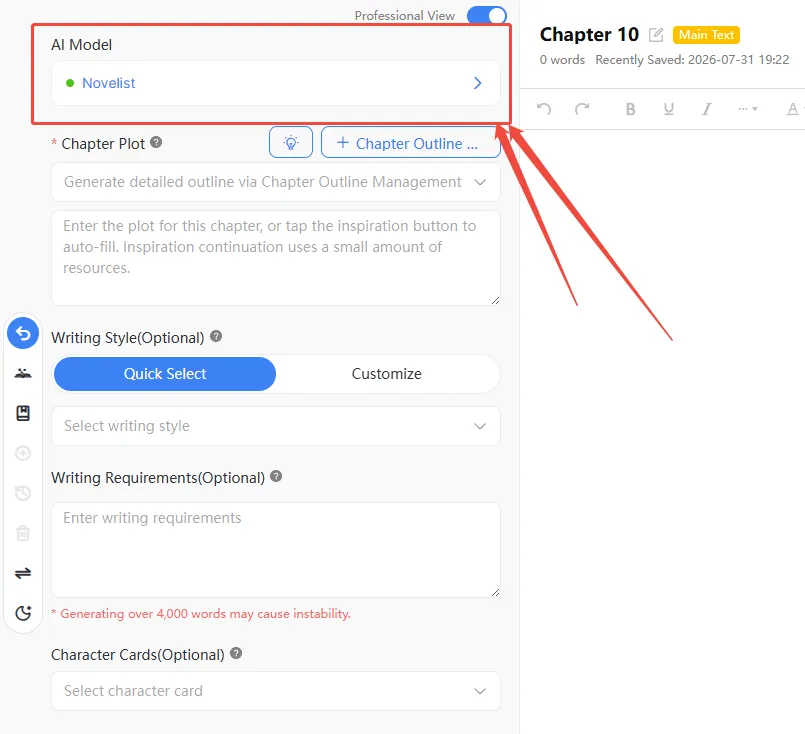
Model Selection
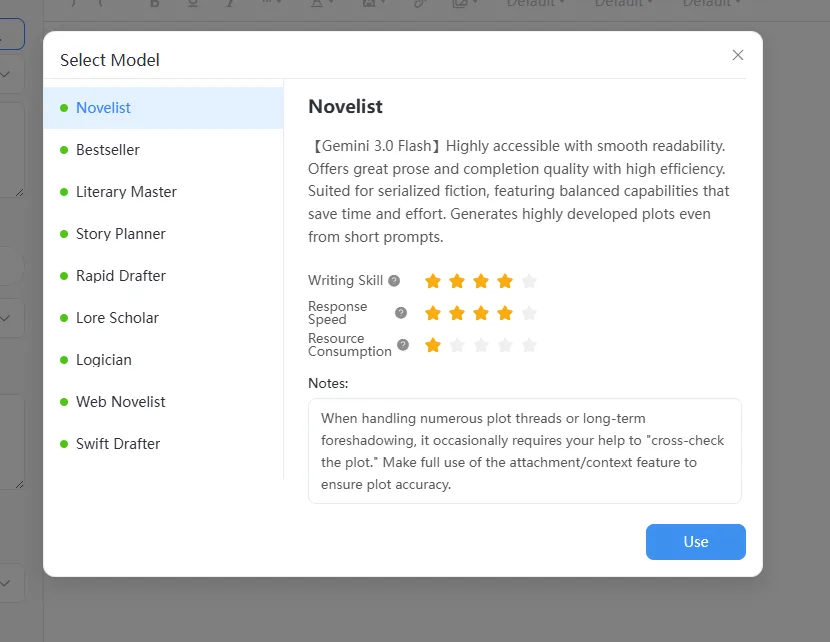
First is the AI model selector. We currently support mainstream models like Gemini, Claude, and DeepSeek, allowing you to swap seamlessly based on your preferences and needs.
Chapter Outline Management
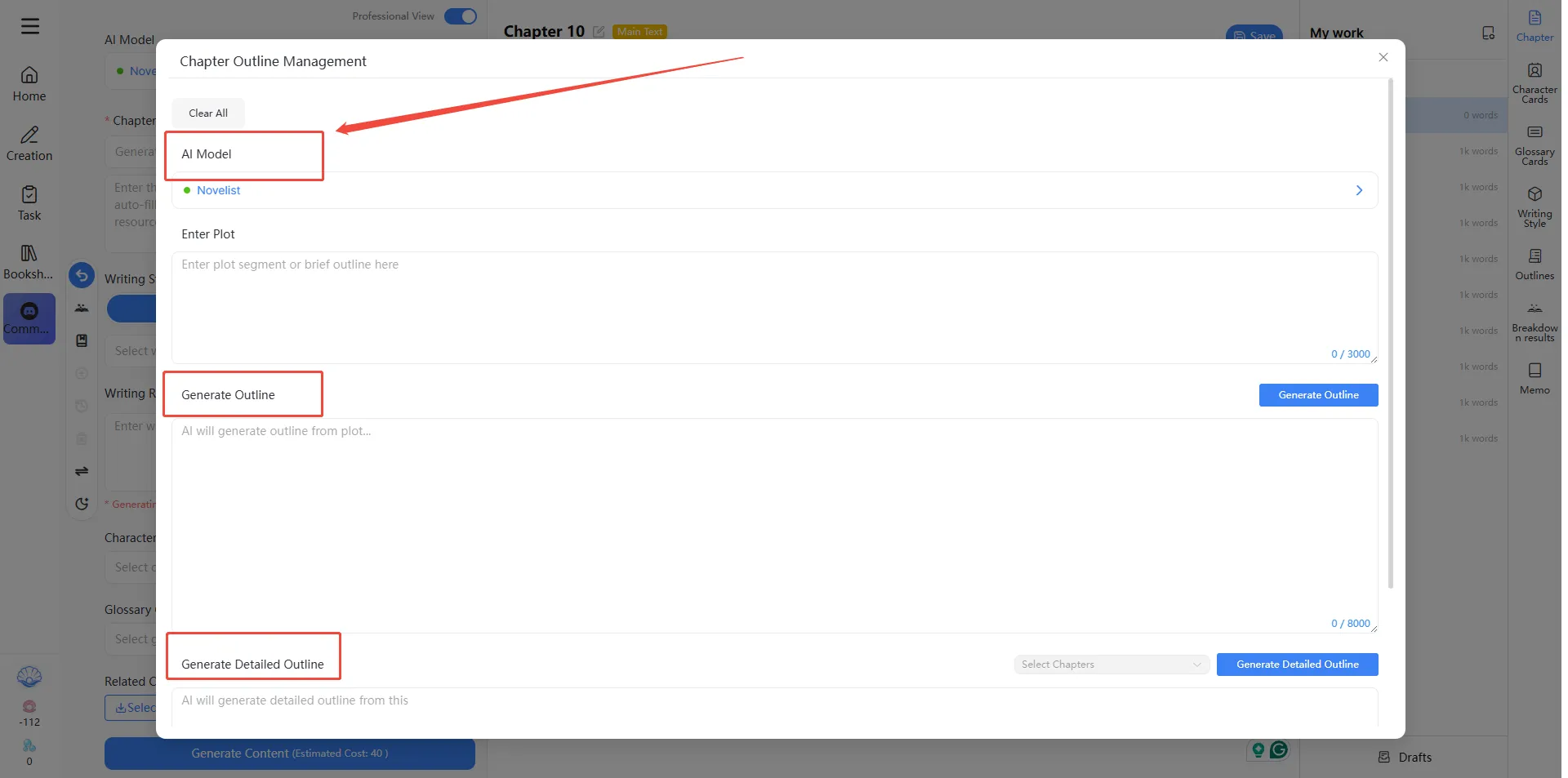
Steer your narrative drafts here. It guides your flow organically from fleeting ideas → main Outlines → chapter Detailed Outlines. You can also directly describe your Chapter Plot in the input box.
Writing Style
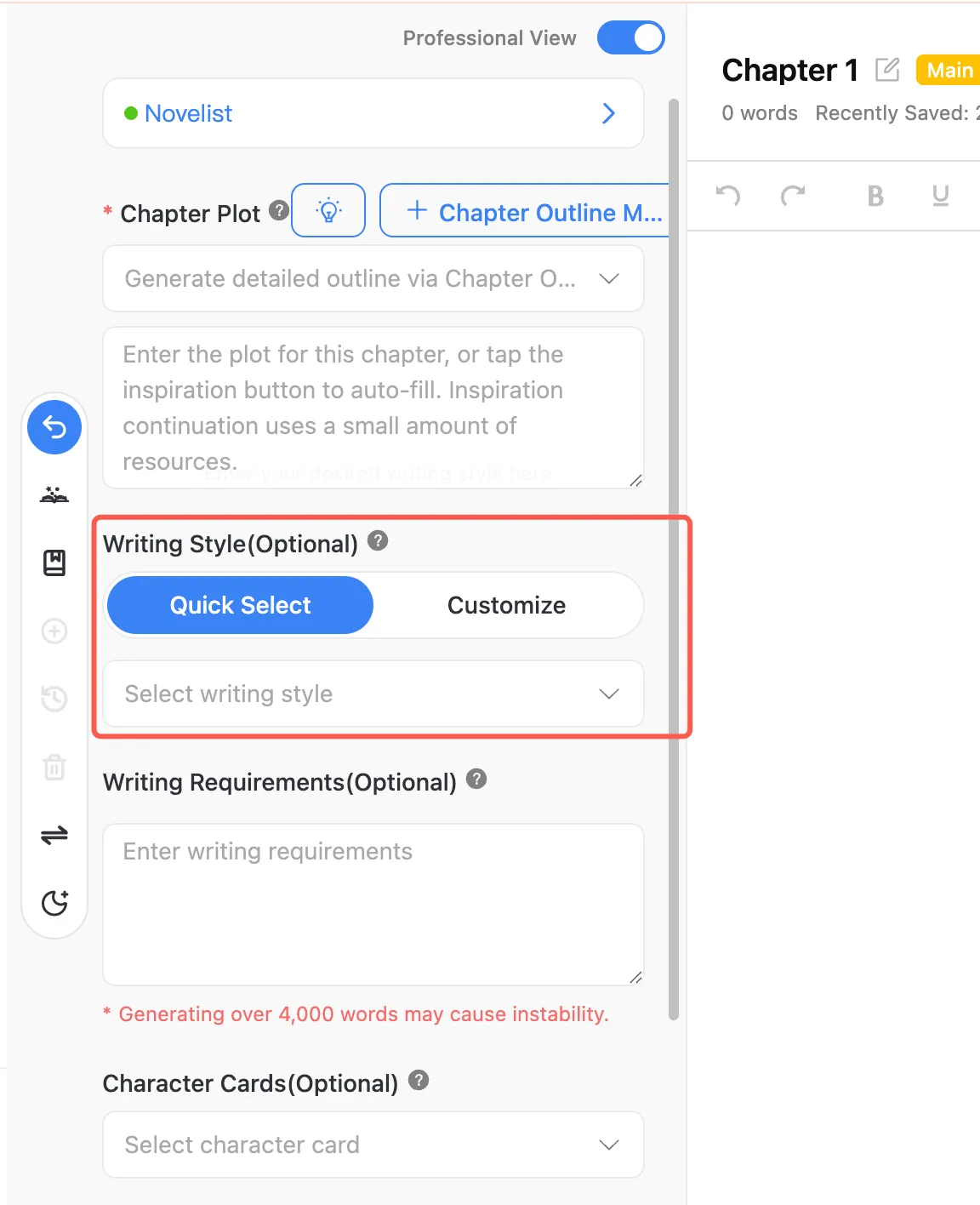
Features three options: quick select, custom styling, and expanded references, helping you instantly apply your favorite literary templates.
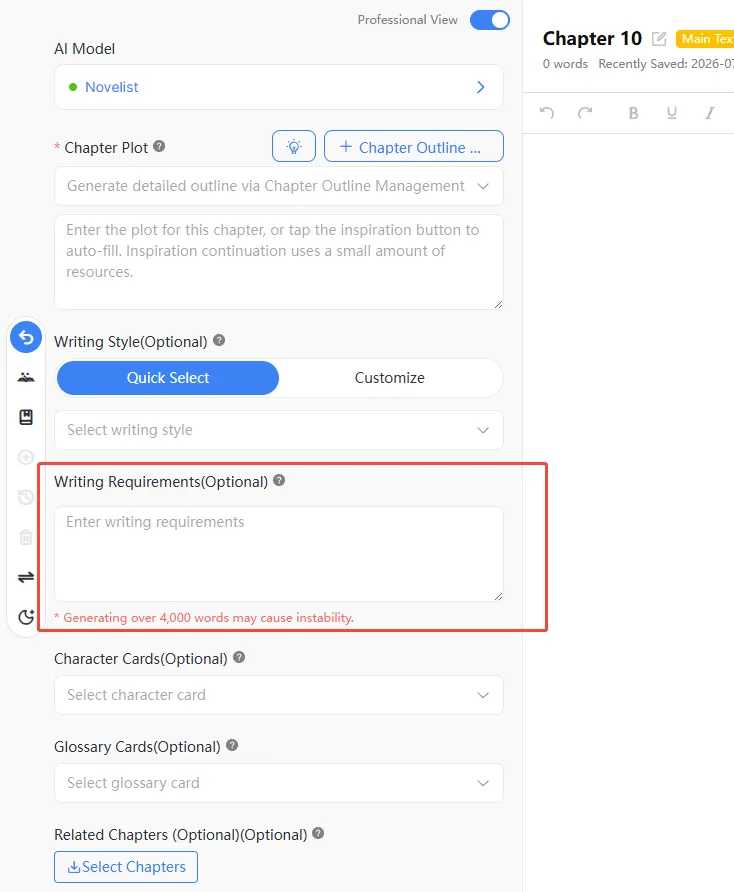
Writing Requirements
Drop your specific directions into this box—be it plot direction, atmospheric mood, or word count limits—and the AI will craft the prose to your exact instructions.
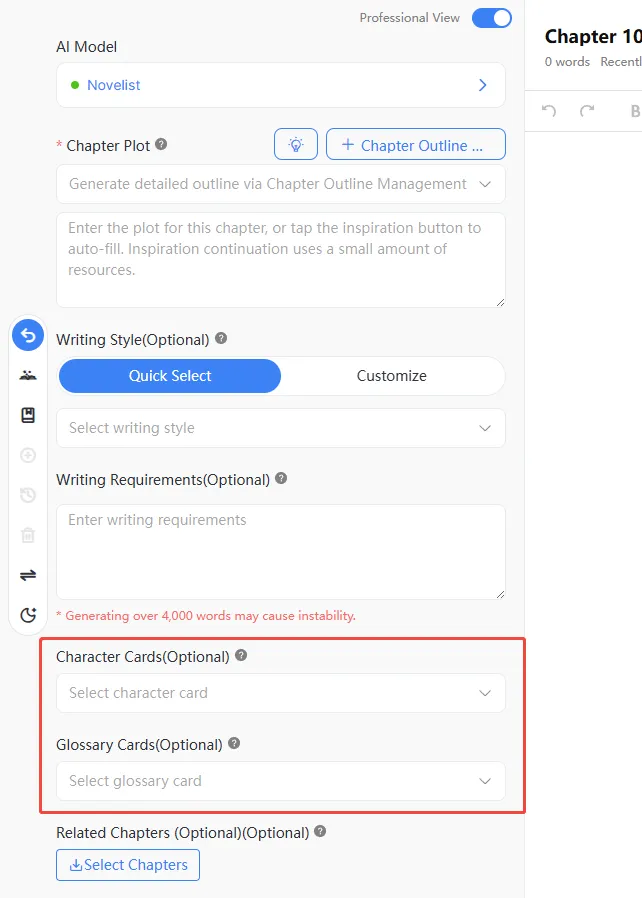
● Character Cards & Glossary Cards
Quickly call up your Character Cards and Glossary Cards to select the specific character profiles and lore needed for the current chapter.
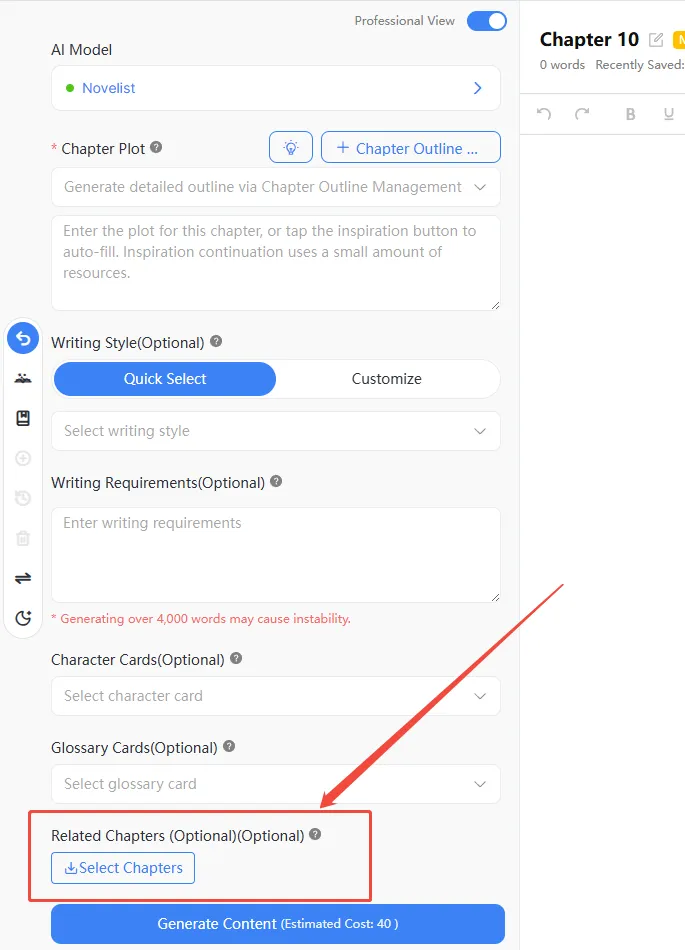
● Linked Chapters: When weaving new events that tie back to previous moments, you can link up to 5 earlier chapters for continuity.
If you're a first-time visitor, follow these steps to quickly find your rhythm:
1. Start a new Creation and open Agent Mode.
2. Chat with the agent, briefly describe your Chapter Plot, and generate an Outline.
3. Review, refine, and save the text in the central Editing Area.
And just like that, you've completed the minimal loop from a raw spark to your very first chapter.
That wraps up the core features of the SeaBell Professional View.
The three-column layout seamlessly links AI assistance, content creation, and project management together, making your creative flow effortlessly smooth.
Start by writing just one chapter. As you slowly flesh out your characters, lore, and outlines, you'll find it much easier to keep the momentum going.
Happy writing ✍️